Do-It
Your day, one gesture at a time
doit.isocompany.co.kr
Open it on a phone or tablet. On a PC you will see a QR code.
Overview
Daily pills, easy-to-forget routines, monthly bills. There is a lot to keep track of, and checklists grow long fast.
Do-It shows one thing per screen. Press and hold to finish it, then swipe up to the next. Missed items are never piled up in red.
Key features
Press and hold to finish
No buttons to hunt for: hold anywhere on the card. Hold again to undo; count goals go up by one each time.
Add in one line
Double-tap and type a line — the time, count and amount are filled in for you.
Swipe by topic
Split things into topics such as pills, routines and chores and swipe sideways between them. Within a topic, swipe up card by card.
Intervals and deadlines
Things you do every few days, or by a set date, count down the days left. You choose how many days ahead they show up.
Bills at a glance
Subscriptions, insurance and utilities grouped by category, with the monthly total and upcoming payment dates.
Count what is left
For things you count, like pills, enter how many are left and it goes down each time you finish. See roughly when you will run out, and the card shows the count when it runs low.
Your history as a grid
Swipe the summary sideways to see each month as a grid, with fully done days in the darkest shade. Missed days are never marked in red. Tap a month to see what you did each day.
An app without installing
Opens straight in the browser. Add it to the home screen to open it full screen, and offline after the first visit.
Do-It in use
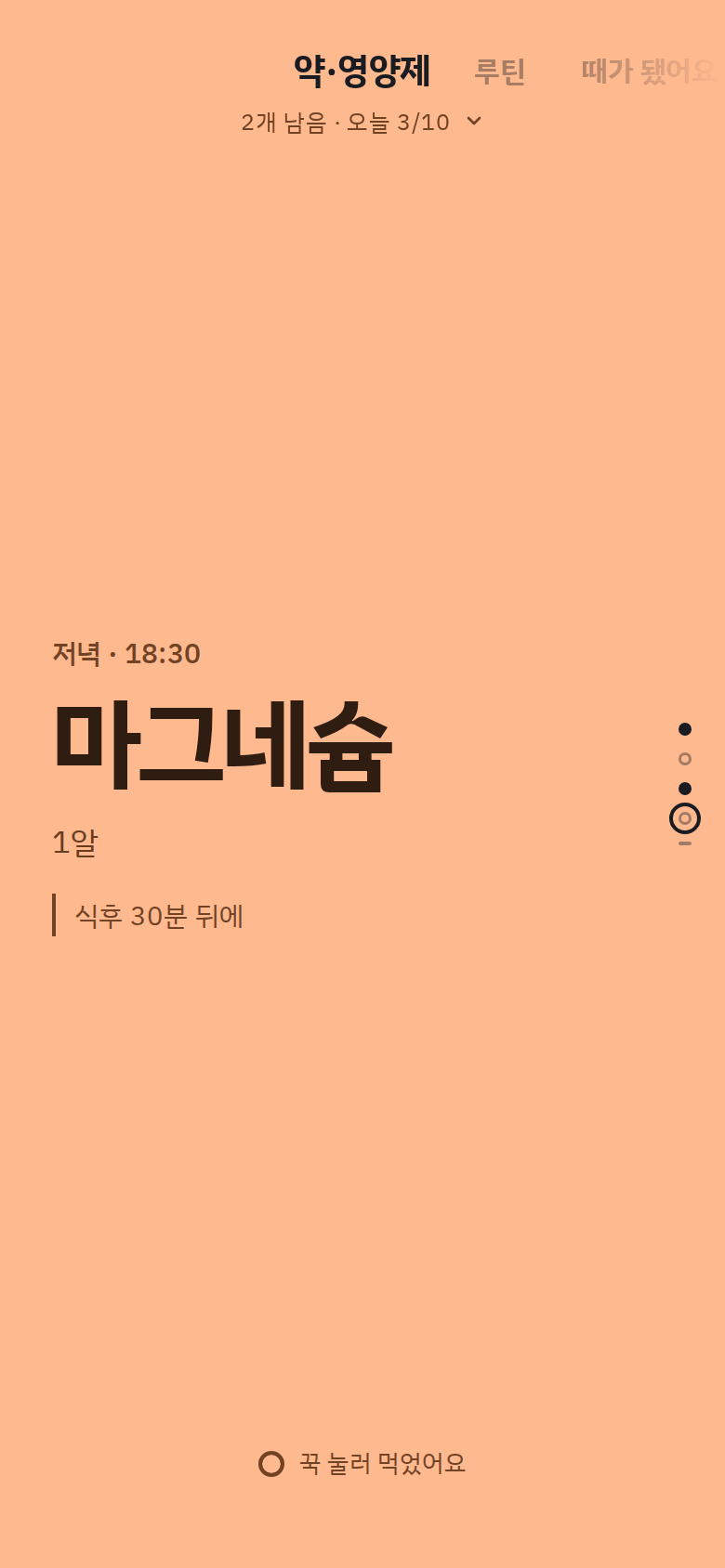
One thing per screen — only what needs doing now, in large type.
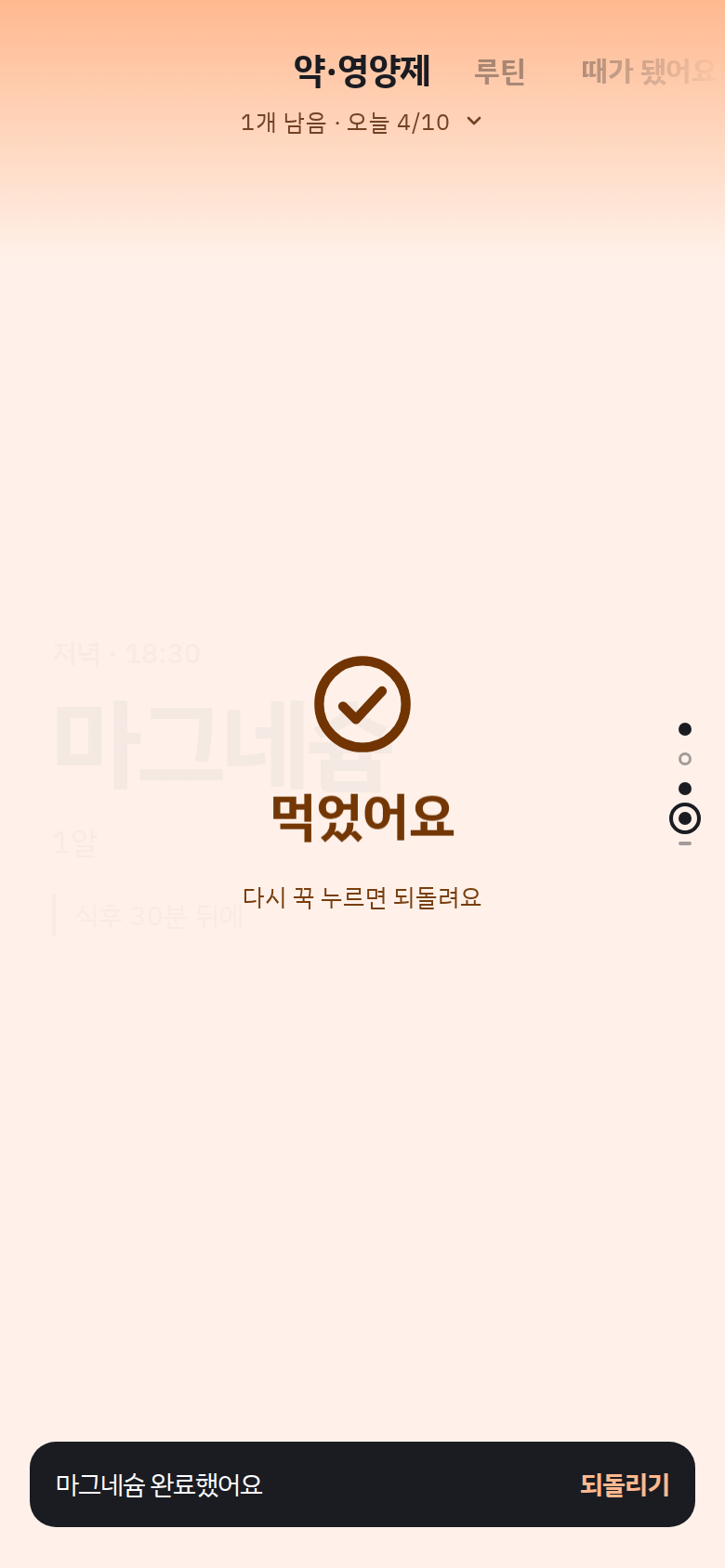
Press and hold to finish — hold again to undo.
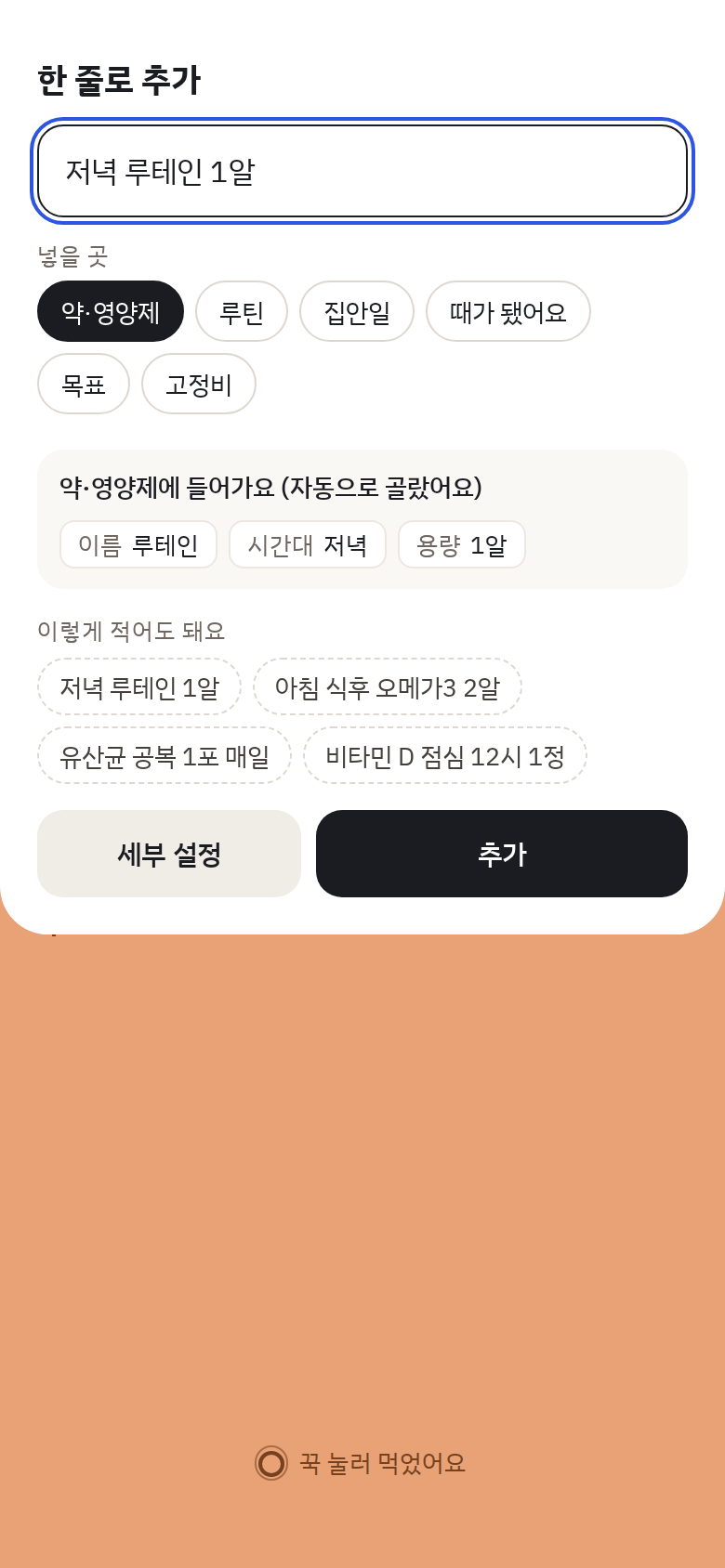
Double-tap to add in one line — it splits time, dose and amount for you.
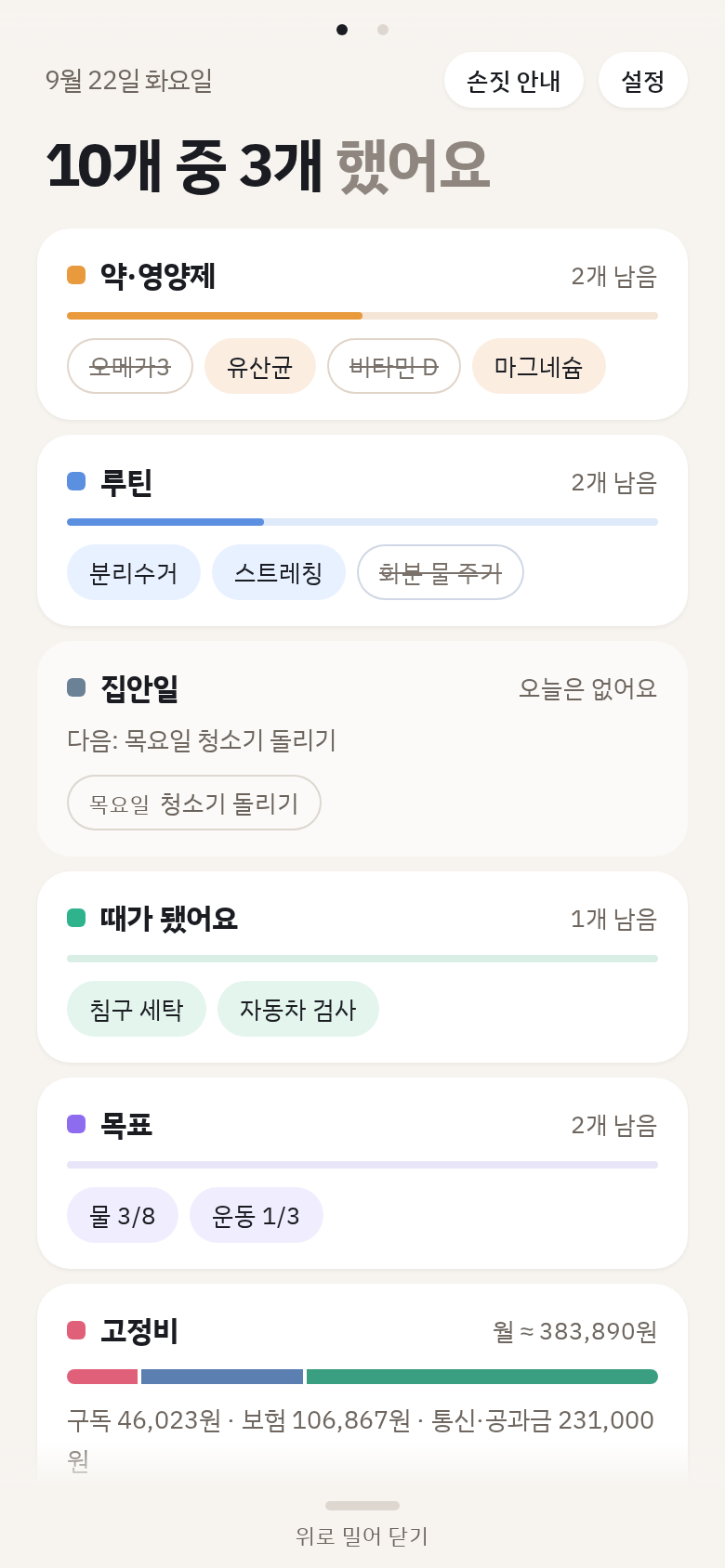
Pull down for today’s summary — what is left per topic and your monthly bills.
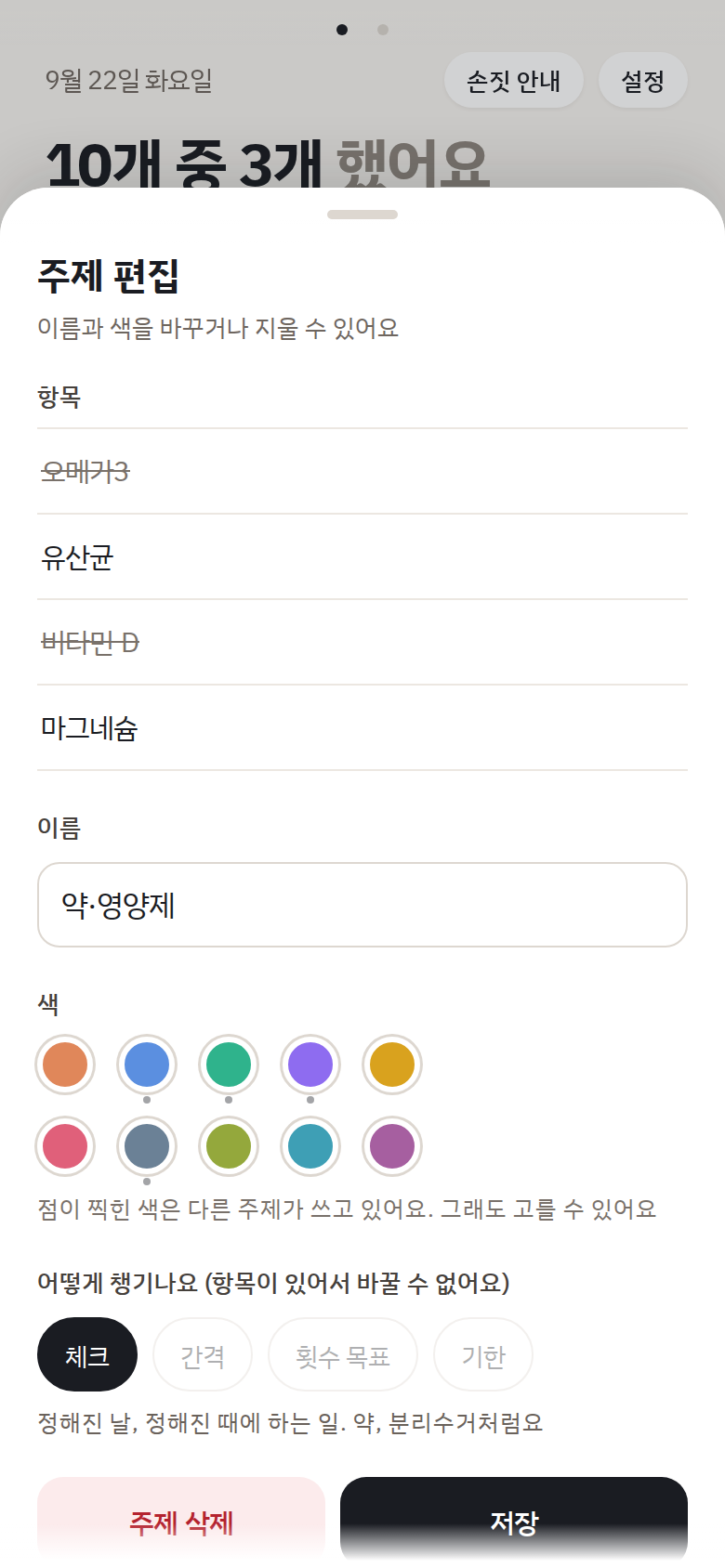
Tap a topic card in the summary to see all its items and change its name or color.
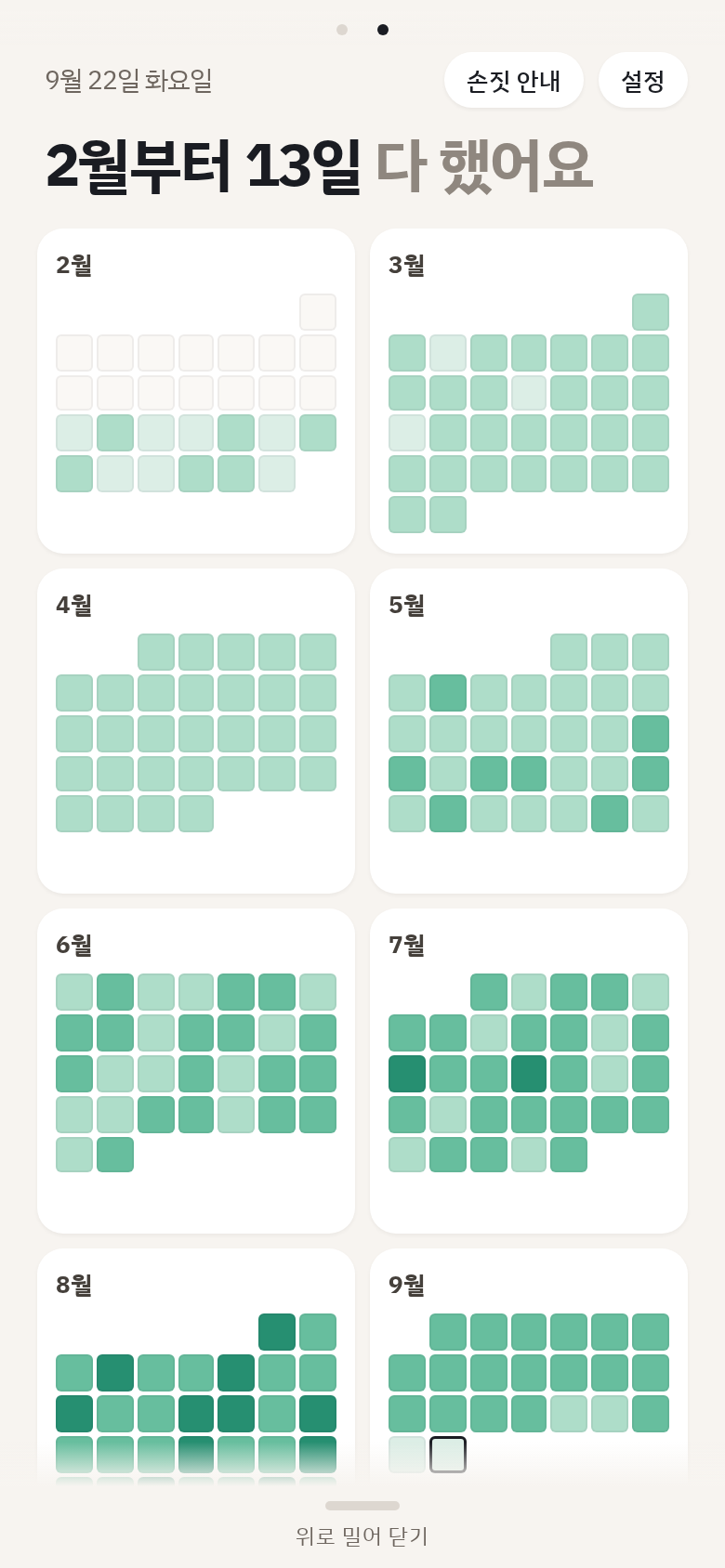
Swipe the summary sideways for your history — each month as a grid of days.
Add to the home screen
Open it on your phone
Tap "Open in browser" above, or go to doit.isocompany.co.kr. If it opened inside a messenger app, switch to the default browser first.
iPhone (Safari)
Tap the Share button at the bottom and choose [Add to Home Screen].
Android (Chrome · Samsung Internet)
Open the menu (⋮) at the top right and choose [Add to Home screen] or [Install app].
Releases
New versions need no install — they apply the next time you open the app.
Small fixes and corrected counts
See what changed
- In the Bills category sheet, adding a category now comes first and the category list sits below it.
- While a sheet is open, the undo notice appears at the top so it no longer covers the buttons.
- Deleting the card you were viewing now takes you to the next card instead of jumping to the top.
- Fixed expired deadline items still being counted in today's tasks.
- Edits to a topic's name are kept when you visit one of its items and come back.
Edit and delete Bills categories
See what changed
- You can rename, recolor or delete a Bills category. Deleting a category also deletes its payments, and you can undo it right away.
- Removed the helper that let you swipe sideways while a card was still scrolling vertically. It didn't work on iPhone.
Topic sheets split into two pages, plus iPhone polish
See what changed
- Tapping a topic card in the summary now opens two pages: its items and its settings.
- Tidied up spacing in the history view and item details.
- On iPhone, you can now swipe sideways even while a card is still scrolling vertically.
- Fixed the top bar of the iPhone Home Screen app showing white or gray.
Remaining counts, a history grid, and managing everything from the summary
See what changed
- For items you count, like pills, enter how many are left. The count drops each time you complete it, and the app tells you when it will run out.
- From an item's menu, you can push it back an hour or skip it just for today.
- Any shortfall on a goal can carry over to the next period.
- For items that come around on a schedule, you can choose how many days ahead their card appears.
- In the summary, tap a topic card to see its items, or long-press and drag to reorder topics.
- Swipe the summary sideways to see your past days as a history grid.
- After you complete an item, an undo option appears briefly.
- Text no longer overlaps when you swipe up, and sideways swipes work right after a vertical swipe.
- On iPhone, the colors at the top and bottom of the screen now match the card. For the Home Screen app, add it again to apply this (export a backup first).
Fixed swiping between topics on Android
See what changed
- Fixed swiping sideways on Android phones not moving to the next topic.
Smoother scrolling and gestures
See what changed
- When you scroll a panel, content now fades out softly at the top and bottom edges. On small screens you can scroll down to the add button.
- You can close a panel by dragging it down from the top.
- Completing or undoing an item with a long press now transitions smoothly, and the next card comes up a little sooner.
- You can now change the name and color of Bills too, by long-pressing its card in the summary.
- On iPhone, swiping from the screen edge no longer closes the open summary. Swipe it up to close it.
- Fixed a long press right after scrolling opening the menu instead.
Brighter colors, plus a new icon and launch screen
See what changed
- Topic colors look fresh instead of muted, and text uses a matching deeper shade so it's easier to read.
- Completed items no longer turn dark. They show a light background with a check in the topic color.
- The app background is now a warm paper tone, and summary cards carry a light hint of each topic color.
- In the home-screen app, the top of the screen now blends with the black status bar. Re-add the app to your home screen to apply it (export a backup first).
- The app icon and the logo shown at launch have been redesigned.
Polished settings and item details, and fixed items disappearing
See what changed
- If time-of-day ranges overlap or are out of order, a note appears under that row and the change isn't saved.
- Settings are now grouped into cards, with a bar showing your day's time ranges at a glance. Times use the 24-hour format.
- Item details no longer use "?" help. Field names and choices say what they do, and one line shows the result of your choice.
- Reminder and remaining-count fields, which are still in the works, are hidden for now. Values you already set are kept.
- Fixed items disappearing after entering an out-of-range number for a goal count or interval. You now see a note under the field.
- Fixed times and dates being cut off on narrow screens, and removed the version line at the bottom of Settings.
Improved the UI and small features
See what changed
- Fixed an issue where some screens, like settings, lacked right margins and updated all screens to follow consistent layout rules.
- You can now tap anywhere on a topic card in the summary view to open that topic. Previously, only the very top line was clickable.
- Typing "Creatine after workout" automatically assigns "after workout" as the note and "Creatine" as the item name. This also applies to phrases like "before shower" and "right after waking up."
- Items with units like "5g," "1 scoop," or "1000mg" are automatically categorized under Medications/Supplements. Once a name is categorized there, it will automatically go to the same section next time.
- Clarified column names in the item details view and added a "?" icon next to confusing fields to show definitions and examples when tapped. It also explains what your selected option means in a single line below the field.
- Labeled the date range fields as "Start Date" and "End Date," and the app will instantly alert you if the end date is earlier than the start date.
- Fixed the fixed expenses duration counter: entering a start date now correctly tracks "X months active" starting from that specific date. Previously, it counted from the month added, displaying "Starts this month."
- Updated the home screen icon to the new design and added app version details at the very bottom of the settings screen.
Updated the home screen name and icon, and made the quick add smarter
See what changed
- Fixed an issue where adding the app to the home screen displayed the old name (do-it) and icon. It now correctly installs as "Do-It" with the new icon.
- Typing dates like "Recycling tomorrow" or "Dentist Sept 30" automatically schedules it as a single-day task. Adding "by" will still set it as a deadline like before.
- Entering non-medication tasks in the Medications/Supplements view routes them to General Tasks, while typing a supplement name anywhere else automatically puts it in Medications/Supplements.
- When importing a backup, the app now shows a table comparing your backup records side-by-side with your current device records so you can see exactly what changes.
- Added a warning to the backup section in settings for iOS users: deleting the home screen icon erases your local data. Please export your data to a file before removing the icon.
Fine-tuned the experience to feel more like a native app
See what changed
- Sharpened the home screen icon and set the default installation name to "Do-It."
- You can now toggle a notification badge in settings to see your remaining tasks for today directly on the home screen icon.
- Reduced stuttering when swiping quickly between topics and prevented the screen from shifting over when pulling past the first or last topic.
- Terms used exclusively for payments, like "Rent" or "Maintenance fee," are automatically categorized as fixed expenses and display relevant examples.
- Enhanced haptic feedback so you get a subtle click sensation when tapping, and a vibration when holding down to complete a task (requires iOS 18 or later for iPhone).
Cleaned up the splash screen, top layout, and link sharing previews
See what changed
- Smoothed out the splash screen experience by making the logo fade in and out gracefully, eliminating the initial logo flicker.
- Fixed layout issues where the splash screen or topic screens would appear cut off halfway when switching the device to landscape mode.
- Expanded the app layout on the home screen to fill the entire display, stretching all the way to the status bar (clock and battery area). If you already added the app, you will need to re-add it to apply this change. iPhone users should back up their data before doing this.
- Sharing the app link via messaging apps now displays a preview image and a summary description of Do-It.
Optimized behaviors for a more native app feel
See what changed
- Fixed an issue where menus like settings would drift horizontally when swiping near the edges.
- Disabled double-tap to zoom and pinch-to-zoom gestures to prevent accidental screen scaling.
- Disabled text selection when long-pressing guide banners, while keeping text selection fully functional within input fields.
Polished the splash screen
See what changed
- Extended the display time of the splash screen slightly for a smoother transition, and added the ability to tap to skip it instantly.
- Fixed a bug where a residual background color remained at the bottom of the screen after the splash screen faded out.
Do-It is officially live!
See what changed
- Displays one task per screen to help you focus. Simply press and hold to mark a task complete, or hold again to undo.
- Double-tap anywhere to quickly add a task in one line. Typing phrases like "Evening Lutein 1 pill" or "Netflix 25th monthly 17000 KRW" automatically parses the time, count, and price into their respective fields.
- Easily swipe horizontally to switch between topics like Medications/Supplements, Routines, Intervals, and Goals, and swipe vertically to cycle through individual cards within a topic.
- Groups fixed expenses like subscriptions, insurance, and phone bills by category to show your total monthly spending and upcoming due dates.
- Pull down the top title bar to reveal your daily summary, where you can also customize time slots and gesture guides.
- Open the link in your mobile browser to use it instantly without any installation, and add it to your home screen to use it just like a native app.
- All records are saved securely directly on your device. You can back up your data by exporting it to a file in settings and restore it easily when switching devices.
System requirements
| Free | |
|---|---|
| Device | Phone · tablet (no desktop) |
| Browser | iOS Safari · Android Chrome · Samsung Internet |
| Install | Not needed (adding to the home screen is recommended) |
| Internet | Only on first open |
Frequently asked questions (FAQ)
Is it on the App Store?
For now it is a web app only. Open it in the browser and add it to the home screen to get an icon that opens without the address bar.
Can I use it on a computer?
Do-It is driven by gestures — hold, double-tap, swipe — so it supports phones and tablets only. On a computer it shows a QR code to open it on your phone.
I cannot find "Add to Home Screen".
Browsers inside apps such as KakaoTalk or Instagram do not offer it. Reopen the page in Safari on iPhone, or Chrome / Samsung Internet on Android.